15 Cool iPhone Shortcuts You're Not Using Right Now

iPhone is in high demand nowadays. It provides numerous features that can make your tasks more convenient and comfortable. While many features are visible among the iPhone users, there are some which are not known by everyone. Here are some top shortcuts and features for making your life easier.

1. Scroll Up With a Tap
While browsing through a website, you went all the way down, and now you want to get back on the top of the screen. You don’t need to scroll all the way up; you can just tap on the status bar, and it will take you to the top of the page.
See Also: - Top 8 Apps to Help You Find Your Next Job
2. Slide to Go Back and Forth
Suppose, you are using an application which includes the opening of a certain number of windows, you can simply slide your finger from left to right to go back to the previous window instead of tapping on the top left a corner of the screen. Sliding your finger from right to left will take you to the forward window.
3. Black and White
You can change your Iphone’s screen into a black and white. Just go to Settings>General>Accessibility>Grayscale. Once you go back to home screen, everything on your iPhone will turn black and white. Not only it looks cool, but it will also save your Iphone’s battery life.
See Also: - Top 10 Movie Apps for iOS | Free & Paid
4. Battery Life
You can calculate your phone's battery usage. Fully charge your iPhone and use it till the battery drains. Click on Settings>General>Usage>Battery usage and look at the usage number.
It tells you how long your iPhone can survive on a single charge, and the standby number tells you how long your battery can last if your iPhone is on standby.
See Also: - Top 9 iPhone Fake Text Message Generator Tools
5. Drag and Reply
When you get a message, the notification appears either on the top of the screen or in the middle of the screen. For the top screen notification, you can merely drag the notification down and reply while you are on your current screen. For the box notification, you can simply tap on reply and send a message.
In both the cases, you don’t need to go all the way to the message application which is very convenient.
6. Slo-mo recorder
The slow motion video recording in your iPhone lets you choose between slow and slower. Go to Camera>Slide to Slo-Mo recorder>Tap on the bottom right corner that says 240 fps (frame rate per second), it will change to 120 fps. The 240 fps will record slower videos than 120 fps.
See Also: - 9 Secret iPhone Interrogation Codes You Might Don't Know
7. Voice Message
While messaging someone, you can send them a voice message also. You just need to tap and hold the icon on the bottom right corner of the screen. As soon as you press, it will start recording your voice message. If you let it go, it will pause, and you can tap and hold it again to resume your message.
You can send the message by pressing the up button and delete it by pressing the cross button.
8. Shortcut to Websites
If you are browsing a website and you want to use it over and over again, you can simply Open the website>Tap the button on the bottom middle>Add to homescreen>Rename>Add.
It will send a link to the website on your iPhone in the form of an application on your home screen. This application will take you directly to that site.
9. Hide Applications
You can protect individual applications that you don’t want others to see or use. Go to Settings>General>Restrictions>Set a password>Choose the applications you want to hide.
The applications will no longer appear on the home screen. No one without the password can access the hidden applications. To unhide the applications, you just need to go to Settings>General>Restrictions>Enter the password>Unhide the applications.
See Also: - Simple Trick To Find Out How Much Data Facetime Call Use
10. Save Your Money
You might want to restrict others from buying or deleting an application on your iPhone without your permission. It can cause wastage of your money.
Click on Settings>Restrictions>Turn off Installing apps/Deleting apps/In-app purchasing. It will not allow anyone to install/delete any application on your phone, not even you and your money are saved.
11. Assistive Touch
You can avoid pressing buttons and drag notification tray. Assistive touch allows you to perform functions by the touch. Click on Settings>General>Accessibility>Assistive Touch. A little menu will appear on the home screen. It provides shortcuts to many functions. You can customize it according to your need. One can drag it anywhere on the screen, and it automatically hides by reducing its opacity yet visible to use.
12. Comfortable Typing
While messaging, typing capital letters and numbers can be a bit annoying. All you need to do is just press and hold the number key and drag to the number you want to type. It will take you back to the keyboard automatically. You can do the same with the shift key for capital letters. Once you get use to it, you can type a lot faster.
13. Shortcut to Drafts
In your mail account, if you want to see the list of your draft messages, you can just press and hold on the compose button instead of going to the drafts option and the menu will appear on the screen.
14. Shortcut to History
In Safari application, to see your browsing history, you can just press and hold the back button, and the list of your previously visited pages will appear.
15. Shortcut to Web Addresses
While typing a website in your Safari application, you can just tap and hold the period key, and it will generate some web addresses for you to choose.
Now you know your iPhone a little better. These tips and tricks can save your precious time. After all, a short period saved is a short time gained.
 Forget memorizing contact number and emails from your photos and after that calling. Smart Scanner permits you to take details from the image and instantly call or compose an email. Plus, it's likewise possible to take URL and open it straight in Safari. How practical! Thanks to best mobile
 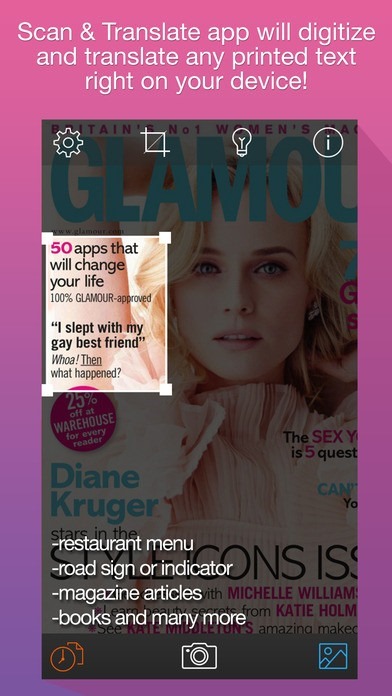 Exactly what about files, directions, statements, books in various languages? No issue, there is an app which manages that problem efficiently. Scanner & Translator permits you to take an image of the text and later on to modify, hear and equate it instantly. Likewise, it's possible to share it on social media networks or
  Just snap a picture of your paper or on-screen file and transform it with ease into an editable MS Word file. Whether you are an entrepreneur or a trainee, this app will provide you a hand and replacement from losing your time on retyping your class notes, billings, reports, invoices and other files. An excellent benefit is that the conversions happen on the servers so the entire procedure will not impact battery of the mobile phone.
  It's unfair to point out Word file format and to overlook Excel. If you utilize tables and spreadsheets every day, then this app will put an entire various viewpoint on file management. With Image to Excel, it's possible to transform pictures of tables into editable Excel files. Thanks to efficient OCR innovation even complicated tables can be transformed. It will make life much easier to all experts, accounting professionals, supervisors and bring their performance to a greater level. Install the app from below link.
  To finish the whole photo with the file management, you'll require another app. With this app, it's possible to conserve your pictures of various forms as PDF files. Also, you can transform Gmail images and files from Google Drive, Dropbox, Box and OneDrive without leaving the app.
  If you are photo and art lover, then you'll fall for this app.