WELCOME TO EHOST.COM.NP
Showing posts with label Tricks. Show all posts

Wednesday, September 21, 2016

FIX Missing Personal Hotspot Option in Reliance JIO 4G

A lot of BUZZ is going on about Reliance JIO 4G and people are making a mess by jumping in to get a single SIM by which they can enjoy unlimited HD VoLTE calling and utilizing free Internet. I have earlier posted about Reliance 4G on how you can get a SIM for yourself or any of your family member. All the devices that support Reliance JIO 4g and even using Reliance JIO 4G on 3G phones.

reliance jio 4g personal hotspot missing

So I even tried to get my hands on it but I was not keen enough to invest Rs.3500 approx. to get those buggy LYF phones. So I waited till the time my iPhone SE gets full support for this and yesterday i got my hands on a single SIM but I had to pay Rs.300 extra as a bribe kind of thing to get a single SIM.

And today my Reliance JIO 4G got activated. But there was a problem I was not able to use the Personal Hotspot feature as the option was missing in my iPhone SE while using Reliance JIO 4G but on my Airtel number it was there, so I just made a search to find a solution ad got to know many people were facing this problem.

Luckily a solution was posted and it worked. So check below steps on getting that missing Personal Hotspot feature on your iPhone or other iOS device while using Reliance JIO 4G.

How to use Personal Hotspot Feature on iPhone SE while using Reliance JIO 4G

The method is very simple and it will work for your instantly, you just need to add a simple line in your APN which is short for Access Point and you will get back your Personal Hotspot feature.

  1. After your Reliance JIO 4G SIM is activated, you need to insert it and navigate to Mobile networks.
  2. Activate mobile network and then under its options you need to select LTE option.
  3. It might show you some warnings that this network won’t work fine on your device and blah blah. Ignore THAT.
  4. Simply get one page back and you will see Mobile Data Network option click that.
    reliance jio 4g personal hotspot option missing iphone se
  5. Now enter “jionet” under every single APN option you see on that page, check above screenshot.
  6. That’s it now you need to wait 2-3 seconds and your LTE and signal’s will drop and recover again.
  7. Now you will have the Personal Hotspot option back which you can use to tether your Reliance JIO 4G internet on your computer, laptop or other mobile and smartphone.

It was a small hack but this can eventually help you to tether your internet connection and enjoy free unlimited 4G internet from Reliance on any of your device using Wi-Fi. I hope you enjoyed reading this article, do recommend this to your friends if they are facing the same issues, sharing bar is below, have fun, KUDOS !
ADS SPACE

Saturday, September 10, 2016

How to use Reliance JIO 4G SIM on your 3G Smartphone

Many people are still using a 3G based phone and they have not switched to a 4G enabled phone. Now if you are reading this post then its obvious that you are curious to give Reliance 4G VoLTE SIM a try and check its speeds and calling connectivity. Well let me remind the tutorial we are providing will help you to activate Reliance JIO 4G SIM in your 3G based normal phone or smartphone but you still won’t get those high internet speeds as it requires a 4g device, but yeah calling could be made free that’s the best part right.

using reliance jio 4g on 3g smartphone

So lets explore how you can use Reliance JIO 4G SIM in your 3G phone to activate those Unlimited Free Calls and still a speedy internet.

Enable your 3G Phone to use Reliance JIO 4G VoLTE SIM for Unlimited Calling

There are 3 different modes in which this trick is going to work and we are going to show you all three, so whatever works for you try that out but these tricks will involve a little tech stuff so beware.

Remember You must have 4.4 Kitkat or Upper version get these tricks working on your 3G based smartphone.

#1. For Devices using MediaTek Chipset Processor

If your 3G based phone uses a Chipset Processor by MediaTek then follow these steps to enable Reliance JIO 4G SIM. You can find that by using a simple and free app from the PlayStore, lets check that out.

  1. Download and Install CPU-Z Application from the PlayStore this will help you in checking what processor your phone is using.

    Install CPU-Z App

  2. Now wait as it fetches all the information about your device including the processor your device is using.
    AH-Mediatek-Logo-1.3
  3. Now if you are using Mediatek Processor then a logo like above would be displayed. Then its time to process further.
  4. Its time to go TECH Based, now you need to install MKT Engineering Mode Application that will help you to enable Reliance JIO 4G LTE SIM to work on 3G Phones.

    Install MKT Engineering Mode App

  5. This application help you to run advanced setup from the Engineering Mode Setup option. Remember use the menu carefully, its can harm your device if used without knowledge, so follow steps properly else if you are afraid, just stop processing further, we won’t be responsible for any damage.
  6. After you open this application, click on “MTK Settings” option and then select Network Selecting/Preferred Network Option.
  7. Now you can select 4G LTE/WCDMA/GSM as your preferred network and Save your settings and turn off your device.
  8. Insert Reliance JIO SIM in the SIM 1 Slot, in case you have a dual phone and then Switch it back on.

Now you will get Reliance JIO Signals, enjoy using Reliance JIO SIM on your 3G based phone, make unlimited voice calls and try accessing the internet you won’t get 4G speeds but still it will work.

#2. For Devices using Qualcomm Chipset Processor

If your device is Qualcomm Chipset Processor then you need to follow below steps to enable Reliance JIO 4G SIM on your 3G phone.

  1. Install Shortcut Master Lite Application from the PlayStore, its free and install instantly.

    Install Shortcut Master Lite

  2. Fireup the application and you will see 3 dots on top, click those dots and then got to Menu and search for “Service Menu” Or ”Engineering Mode
  3. Now select System App option to make a deep search.
  4. Access and change the LTE Bands over there, if you don’t find Service Menu but found the Engineering Mode, then check below.
  5. Open Engineering Mode and select Change LTE Bands.

#3. For Moto G based Series Phones

If you have a Moto G based series, then below steps would be helpful for you in getting Reliance 4G LTE SIM working on 3G Smartphone.

  1. On your phone dial *#*#4636#*#*
  2. You will see a popup page, click on Phone Information.
  3. Scroll down and see Set Preferred Network Type and choose LTE/GSM option to enable the Reliance LTE SIM.
  4. Then Switch your device off, insert Reliance 4G LTE SIM in slot 1 and then turn the phone on again.
  5. You will see Networks from Reliance 4G SIM, just try calling your friends and even using the internet.

Here we go we have solved your biggest query trending right now in the market on how you can use Reliance JIO 4G LTE SIM on your 3G based Smartphone, I hope these tricks work for you.

Sunday, August 21, 2016

Disable Windows 10 OS Upgrade on your Windows 7 & 8.1

If you are still using that awesome Windows 7 and continuously getting those popups that Windows 10 OS upgrade is ready to be installed on your system and you wish to stay with windows 7 or windows 8.1 then we have a very light and simple utility that will help you with this JOB. Never10 is a simple utility that stops your windows 7 or 8.1 from automatically getting upgraded to windows 10 OS.

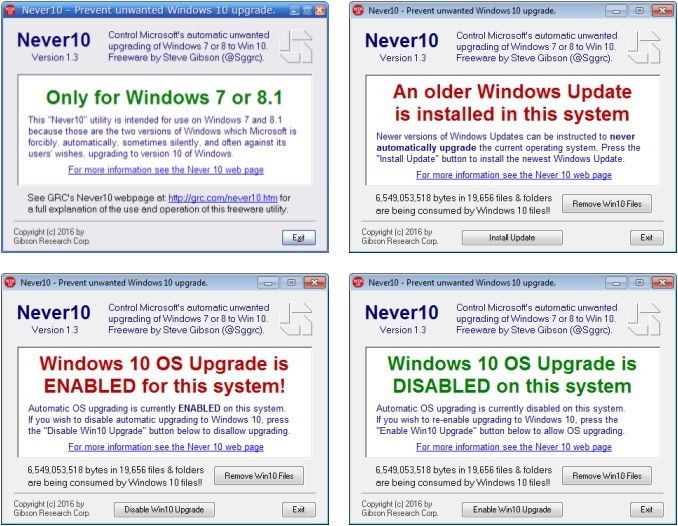
never 10 disabled windows 10 OS upgrade

It can detect the files downloaded secretly on your system and can easily remove them saving you a disk space. As you know if windows 10 as been downloaded on your system it might be consuming a well over 6.5GB which is huge and could reserve a good space.

With Never10 you can detect those hidden files, remove them and permanently disable the windows 10 OS upgrade.

How to Stop Windows 7 and 8.1 to Automatically getting Upgraded to Windows 10

Well BTW I am using windows 10 and I am satisfied with it, you might give it a try but decision is yours, so if you still wish to disable that automatic windows 10 upgrade then Never10 could be a useful tool. Lets checkout how to download and use it.

Download Never10 Tool

  1. Download Never10 tool for your windows 7 and 8.1 machines from the link given above.
  2. After that you need to double click to run this tool, now you might see some warning but that is OK, just press Run Anyway key.
  3. Now you will see windows like above, if your windows 10 upgrade is enabled you will see a text in red and then you can press the “Disable Win10 Upgrade” option to disable it.
    windows 10 files delete
  4. You can also see if files are automatically downloaded for windows 10 then you can press that “Remove Win10 Files” option to remove all those downloaded files and save some space.

So guys this ends this post, I hope you will enjoying using your older version of windows if you really like it, but I must insist you to give windows 10 a try its worth it. You can check some awesome windows 10 tutorials that might be useful for you.

Friday, August 12, 2016

Simple Trick to Get Hotstar Premium Membership for Free

Hotstar recently got a lot of attention with its marketing and advertising tactics. Nearly every serial that is being watched in Indian houses like the one’s that are preferably ladies choice are a lot popular, and if they have missed watching that serial while cooking some lovely delicacies for their family, they can quickly hop into Hotstar and watch all that left out series from starting.

hotstar premium account free

Apart from those serials, latest Hollywood TV series and Movies and even some excellent Bollywood movies especially in India could be streamed and watched easily online.

There are plenty of other websites to watch these films and TV series for free, but many on the internet could be just waiting for you to JUMP in and pump your details as they might be fake and would not allow you to watch anything apart from taking away everything.

Not all sites are same the list provided above and even using this POPCorn Time Service you can be sure you watch only movies without any fees or subscription, but still preferring an excellent streaming service like Netflix and Hotstar could be a good option for people with little less tech knowledge and yes these sites are useful as they cover almost all the major events like RIO Olympic 2016.

How you can Get Hotstar’s Premium Subscription for Free without using Debit Card

Hotstar usually provide you wit streaming of maximum movies and TV shows but if you go premium you can get your hands on the latest one’s and yes by latest I mean all the Hollywood and Bollywood movies and TV show that are released could be watched on Hotstar in a very less time as they have tied up with these services.

So now you know premium subscription for Hotstar is good, let's see the Hotstar premium account hack that you can use to get free Hotstar Premium Subscription without even using your debit or credit card.

  1. Visit Freecharge.in (Freecharge is simple site that allows you to recharge your phone, DTH and Pay Bills [Check Review)
  2. Create your account, if you have not created one and then add whatever minimum amount you can to your balance. Either Rs.50 or Rs.100
  3. Now recharge any of your device, mobile or whatever with that balance but make to keep Rs.5 inside your freecharge wallet. So if you have Rs.50 in your wallet just recharge your phone for around 40 or 45 and keep Rs.5 in your wallet.
  4. So on the whole you just need Rs.5 for the Hotstar Premium Subscription verification.
  5. Now create an MPIN for your Freecharge GO MasterCard, yes freecharge provides you with an online MasterCard that you can use anywhere in India for online transactions.
    freecharge go mastercard
  6. After creating your MPIN you will get to see your card with 16 Digit number, expiry date and CVV 3 digit number.
  7. This is just like your normal Debit Card but its just virtual MasterCard that can be used using the Freecharge Cash Balance.
  8. So now HOP Back in to Hotstar and Sign-In with your Facebook account and navigate to the Subscription’s Payment page.
  9. Choose Credit Card and enter all the details, name as you see on your card, would be your First and the Last Name.
    hotstar premium subscription page details
  10. Enter those 16 Digits, Expiry Date and CVV Number and agree to the terms and then press on Submit option.
    2016-08-12 16_06_29-Settings
  11. You will be taken to a different page where you need to enter your OTP that you will receive on your phone.
    2016-08-12 16_07_10-Settings
  12. That’s it, now your premium subscription will be active for Hotstar, enjoy your free premium subscription.

How to Get Unlimited Hotstar Premium Subscription for Free using Freecharge Method

So following all the steps above, you can create another account on Freecharge with some different phone number, maybe your father’s or mother’s and then add balance to that too, do every different account you will get a different Freecharge GO MasterCard.

Now you know what to do next, just create another Hotstar account, with different name or different facebook ID and then enter all the details like you have done above to get free Premium Subscription for Hotstar for absolutely free.

Thursday, August 11, 2016

How to Create Slow Motion Videos on your Android Phone

Apple introduced slow motion video feature on their flagship device iPhone 6 and with that one can easily make some outstanding videos. Slow motion videos can create some awesome effects like usually people are using it to shoot some action scenes like skateboarding, skiing, and other sports.

slow motion videos on android

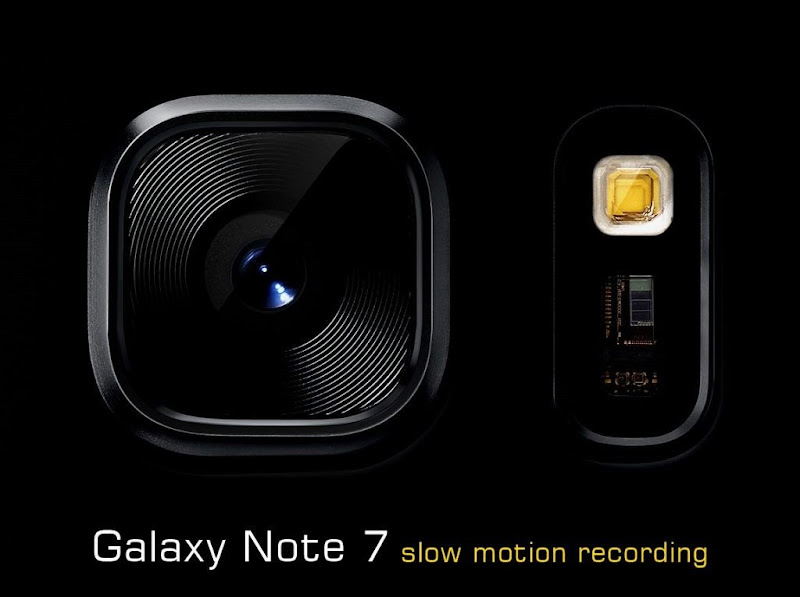
Now if you want to create some slow motion videos on your Android device, then you can either go with the official Galaxy Note 7 that supports slow motion feature or there are plenty of free slow motion video creation apps available in the play store that enabled this feature on any Android device with a good camera.

All these videos you create as slow motion videos can be shared and a uploaded on Facebook, Instagram or any any other social networking platform like WhatsApp and so on. So yes with this you can upload slow motion video to Instagram and Facebook too, pretty cool!

Creating Slow Motion Video using Official Feature on your Android Phones

Yes you heard it, Slow Motion videos could not only be created on your iPhone but few Android devices like Samsung Galaxy S7, Edge and Note 7 also supports this feature by selecting its slow motion video mode.

galaxy-S7-slow-motion-video-recording-feature

With Galaxy Note 7 you can shoot Slow Motion videos at 240 Frames/Second, that's pretty crazy right. So lets see how you can choose the slow motion video option and create some awesome slow motion videos using official Galaxy Android Devices.

  1. Open your Camera Application.
  2. Click on the MODE Text, you can see any the bottom left.
  3. Now choose the Slow Motion option.
  4. That’s it now you can start recording your video.

Samsung Galaxy S7 Edge and Samsung Galaxy Note 7 Slow Motion Video Sample

Here you have a nice sample from both the flagship devices from Samsung, you can see how awesome slow motion videos you can create using either Samsung Galaxy S7 Edge or Samsung Galaxy Note 7, check both the samples below.

How to Create Slow Motion Videos on Non-Supported Android Phones

Now in case your android device does not have this slow motion video feature then you can use a free app called “Slow Motion Video FX” from play store to create some amazing slow motion videos on any android device that atleast has a good camera.

Install Slow Motion App

slow motion video fx camera pp android

  1. Install the application.
  2. Start the application.
  3. Choose the video mode and start shooting.
  4. You will have a nice slow motion video created specially on an Android phone that does not support Slow Motion videos.

So guys this ends another awesome tutorial on creating some high definition slow motion videos with 240 Frames/Second on your Android device, either using official feature on selected devices on using a free app from the play store.

Categories

Article How-to All Posts WordPress Android Web design Blogger Plugins CSS Google JQuery Plugins Programming Reviews Web Hosting Blogger Blogging Blogging Tips Tricks Web Development Facebook Git Internet Make Money Online Social Plugins Tips Tips and Tricks Tools Tutorials Windows WordPress Plugins Blogging Tips and Tricks Freebies GSM Google Analytics HTML How To's JavaScript Plugin Development S.E.O SEO SMS SmartPhone Social Media Tips amp; Tricks Top-Most Updates Webmaster Tools Whatsapp Applications Apps Blogger Basics Documentary Downloads Entertainment Gadgets Games Gmail Google AdSense Guest Post IPhone Make Money Blogging SVN Security Softwares Web Hosting Tips and Tricks Wordpress Tips Wordpress Tips and Tricks hostgator iOS Advertising Networks Advertising Technology Affiliates Antivirus Audience amp; Traffic Biography Blog post Blog post Blogger Blogger Errors Blogger Tips Blogger Tools Blogger Widget Blogosphere Bogger Widgets CSS selectors CSS symbols CSS3 Computer amp; Internet Content Writing Coupon Codes Data amp; Analytics Deleted blog Design DoubleClick for Publishers Email and newsletter marketting Email marketing Excel Tips Excel Tips and Tricks Facebook Tricks Feed Feedburner Feedburner subscribers Font Fun GitHub Giveaways Gmail primary inbox Gmail tabs Google sign-in Guides HTML amp; CSS HTML5 Infographics Inspirational Instagram Internet Marketing Internet Tips amp; Tricks Job Listings Knowledge Life Hacks Lists Make-Money Monetization amp; Conversion Monetize Navigation Online Marketing Other PHP Tutorials Passport Publishing amp; Content Quotes RSS Sidebar Smartphones Social Networking Status Tech Tech Blog Technology Telegram Themes UI / UX User Psychology amp; Research VB.Net Web Tools Web browser Widget Windows Tips Windows-10 ad viewability admin notice blogging tools bluehost cherry-pick clone cors custom scrollbar customizer dismissible notices duplicate post feed title git branch git clone gpg gpg2 hybridauth iPad icon font notice responsive wordpress theme same origin policy scrollbar signed git commit smartsvn theme customizer vcs wordpress theme wordpress themes

Blog Archive